Showing posts with label brushes. Show all posts

Tuesday, April 24, 2012

Fabric, Part 2

Fabric sure does take a long time to sketch! I can't let a single feature of it go unmodified or un-enhanced.

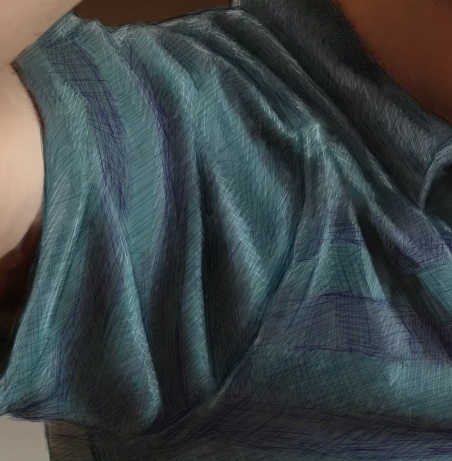
So I took a picture of my son with a loose striped shirt and worked on it. I wanted to highlight the folds of the fabric, the way the light catches the folds, the highlights on the ridges, and even the way the shadows mute the highlights. I wanted it to be a cool sketch. And I was willing to take the time.

I first took the picture with the iPhone and did a little contrast enhancement using Preview on a Mac. Then, in Painter, I cloned it with a Digital Airbrush set to 2.5 pixels in size and set it to use Clone Color. I specifically didn't want to use straight cloning, which just makes a photographic copy of the image. I paid attention to where the features were. When I had a fold, I brushed against the direction of the fold, so the edge took on a bit more complexity. If you go with the direction of the fold, often you will get the position of the fold wrong because of where the colors are sampled from. But sometimes, on a high-contrast fold, you have to do what you can to get it to look right.

Then I used the tiniest brush (size 1.0) with a very desaturated purple. This brush was set to Buildup:Soft Buildup in Painter. And I used a very light opacity, at 18%. Then I simply sketched into the stripes with lines at different angles. When I wanted the sketchy result to be smaller, I pressed harder. And I often went over the same area with strokes at different angles. This is one way I shade, particularly with a Sharpie.

So I went over each of the purple stripes to add clarity and a little sketchy look to it. You can see The results of this in all the examples.

I changed the color to a desaturated blue-green and went over the other stripes. By the time I was done accentuating the depth of the folds, the sketchy look was coming together quite nicely.

Then I switched the brush method to Eraser:Paint Remover at the same width and opacity to do my highlight work on top. When I created a highlight, I woke as lightly with my hand as possible so the highlights wouldn't be too brazen and abrupt.

When I add highlights, I am careful to take light and shadow into account. As the folds go from right to left across the kid's torso, the highlights become catchlights and then become much more muted in the shadow.

I was going for the feeling of a kind of not-too-shiny, yet still-a-bit-matte fabric. I think you can see the look I was going for. The original picture does not have this kind of detail. Especially after I cloned it away. But the detail was taken from the original, at least from what the original suggested. That's the way I like to do it.

This image took hours and hours of time, mostly at night, and it taught me a few more things about rendering fabric. Probably, the next time I will choose a more shiny fabric like leather (not actually woven fabric, but you know what I mean!).

The final piece really brings out the look of the fabric. And it gets my hand ready for more sketching.

Once again, Painter is up to the task.

Sunday, April 15, 2012

An Anatomy of Painter's Brushes, Part 5

Liquid media was always visually stunning. During the Painter 5-7 timeframe, my work on the brushes literally went into a different dimension, a different state of matter. In the Painter 7 timeframe, Corel had taken it over and was just beginning to pwn it. In those releases I created some of the most interesting brushes ever to be created, and some of the most useful and expressive brushes.

I have talked about the Painter 6 brushes, with the bristle brushes that got their own life, the line airbrush, the spatter airbrush, and the pattern pen. But before those new brush engine additions, there were some very interesting developments in Painter 5.

Liquid Media Take 1

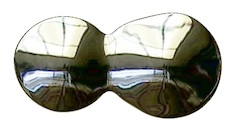
One class of brush was made up by the liquid metal and the water drop brushes. These were actually dynamic plugins, which featured their own layer (or layers!) and a dialog with the ability to draw and adjust. The really cool thing was that these brushes produced objects that were editable. I have done this before, with the mosaic brush, and I like the model somehow, because it extends the possibilities available to me.

What makes this tick? ...you might ask. Well, when I was touring with Painter 5, I made no secret of the fact that I was using two-dimensional metaballs to achieve the look.

Without getting into details, each dab of the brush is really just a procedural point with a radius and a height. You can, for instance lay down some liquid metal and put another drop next to it and watch as they merge into a single droplet. Then you can adjust size, volume, and smoothness to create different looks with your drops. This was the ultimate in procedural description, allowing non-destructive editing. But of course, liquid metal wasn't the only look. There was also another aspect to it, refraction.

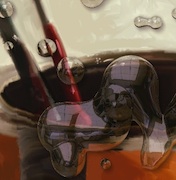
The most cool thing about refraction was the possibility of creating the look of water droplets. We often showed this when we toured with the product. You can see that the picture behind the liquid layer actually refracts and is visible inside of each droplet. I was able to use my experience in the early 80s with building ray tracers to figure out how this could be done.

Notice also that each drop can reflect an environment map on its surface. This complexity and depth lent itself to quite a visual interest. This in combination with the blobby combination of the droplets in a smooth, seamless result gave the user something to think about.

I was always interested in the look of raindrops on glass. As a child, when we drove across country, I would look through a water drop endlessly. Hey, my brothers thought I was peculiar.

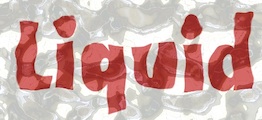
So, for Liquid Metal, I created a Rain button. This randomly deposited drops onto the layer. And as they land, they merge like real raindrops. Eventually it fills up with a wavy surface. Use refraction to see what's underneath it. Here I placed some red text in the background. The refraction produces wavy letters that match the reflections in the surface. Think of it as your private ray tracer. With a brush.

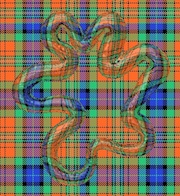
But, speaking of the brush, you can use it to create the same look, but under your direct hand control. Here, a tartan weave fills the canvas but the liquid metal stroke (which is mostly transparent and thus looks like clear gelatin squeezed out of a tube) shows the refraction of the weaving.

There was a theme going: take the paint and use it like a three-dimensional surface. In Painter 5, we had the ability to create impasto. Although we were just beginning to work on it and it would become a truly great feature of Painter 6, you could see the value in it in the can image.

The Painter can hero image showed impasto effects, and we even had to relax them a bit so they wouldn't get too pronounced. I did the graphic of the Painter 5 can with the impasto surface.

We were always doing something with the paint can, since it was our product's identity and brand mark. More liquid brushes were featured in Painter 5's palette. And these were quite familiar to the users of Kai's Power Goo. Use a brush stroke to stir the surface of your painting like it's made from liquid itself. Bulges, spirals all of it can be done there. It merely works like a vector field, with each pixel containing a two-dimensional displacement that yields where the source pixel comes from, or at least the vector from the pixel to the source point.

Painter 5 also contained some new brushes that were more conventional because they operate directly on the canvas. For instance the Turbulence brush is a great way of stirring an image like the cream in a coffee. What it does is to place many dabs of the brush randomly into the image (using jitter, of course), where each dab contains a spiral distortion.

This brilliantly simulates turbulent flow, which actually is decomposable into a series of vortices. Actually, that's exactly what the brush does as well! It pays to read up on vector fields.

Painter 5 also contained brushes for dodging and burning, for sharpening and softening, and also for creating a very brushy smear.

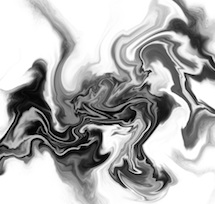
These brushes, like Grainy Mover and the like all use Cellular automata at their core. While other brushes, namely the distort brushes actually were based on marbling. An example of hand-marbled texture is seen here, using Distorto at a large scale, first passed one way, and then perpendicular to it. Several times. Each time, the pattern gets more complicated and more folds appear. Like the finest steel that is tamped and folded over again and again to create a very hard and sharp edge.

So the liquid brushes in Painter 5 utilized a range of technologies to accomplish their liquid looks: cellular automata, vector field advection, ray tracing of reflections and refraction, and two-dimensional metaballs. Friends John Derry, Udo Gauss, and Alex Hsu were all witness to these brushes while in development at Fractal Design.

Liquid Brushes Take 2

During the Painter 7 development period, some new liquid media were developed that really provided some visually beautiful results.

The basic technology of two-dimensional metaballs was to build up a height field with small functions, perhaps a little like dabs of the airbrush, and create a floating point height field that could then be zerosetted to produce liquid-like edges. But In Painter 7, I added a color value to the height field so that each pixel could have a color. When the dabs intersected, their colors would have to intersect and interpolate as well. This created a bit of color bleed where the ink intersected. The edge of the ink was hard-edged, using a similar technology to liquid metal, and the same blobbiness and merging is present, but the colors mix in a more diffuse way when the broad ink strokes meet.

Unlike Liquid Metal, this brush could work with bristles and it had a secret weapon: resist. With resist, you can paint with negative ink. This removes the ink and can thin out areas to create more of a suggestion of the actual ink strokes. It is the equivalent of working scratchboard with ink again. But really, infinitely adjustable.

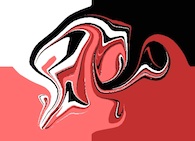
Here, liquid bristle ink strokes are gone over with liquid bristle resist, which carves away the strokes. But the heavy strokes remain longer than the light ones. This is because the liquid ink actually uses a height field. Such a technique, if done even better, might be good for sgraffito strokes as well, where multiple colors can get revealed depending upon how deep you cut with the resist.

I suppose at some point I will have to go into watercolors.

Saturday, April 7, 2012

An Anatomy of Painter's Brushes, Part 4

Expression is a very useful capability of Painter, and it enables you to control your brush stroke in real time. I will mix this with some more of the brushes from Painter 6's new brush engine, as well as some older brushes.

The line airbrush is a very cool brush for creating brushed gradients. Here I set the clone source to a gradient, black at the bottom and white at the top, and used the line airbrush with a spread of 70 degrees. I used a Wacom stylus with a fairly heavy tilt and left-to-right strokes with different colors. In the Brush Controls: Size palette, size expression is set to Source. This means that, the lower I brush in the image, the shorter the lines will be, and therefore, the tighter the gradient.

I drew about 10 lines with colors taken from my estimation of the black body curve (in other words, yellow, through the oranges, to red and then towards black). The result appears brushed, producing a very nicely textured gradient. You can also adjust the spread to make it smaller, in which case the lines become more aligned with each other, like in brushed aluminum.

Another brush done during the Painter 6 timeframe is the pattern pen. This one uses the Rendered dab type. Here I have set up a source that is a pattern and used the Pattern Repeat technique, and I set brush size expression to Source, like in the previous image. This causes the pattern to modulate the size of the brush, creating a sort of alien beadwork that I interpreted to be some kind of sea weed stalks. To make use of this, I drew some vertical lines and then filled the image with black at 50% opacity, fading back the previous image. Then I drew some more vertical lines. And repeated the process a few times. This creates a murky depth cueing to the stalks, making them seem a bit more three-dimensional.

You can adjust the size and min size from the Brush Controls: Size palette to control the exaggeration of the objects on each stalk.

The spatter airbrush is a very cool capability, because it really does work a lot like a real airbrush when you use it. The individual spats are deposited using the same three-dimensional projection technique as the camel hair brush, but this time it makes a very convincing spray. To accentuate the results, I set brush size expression to Source and operated in a clone of a gradient with black at the bottom and white at the top. This automatically controls size in such a way that smaller sizes are at the bottom and larger sizes are at the top. Anyway, it's a great way to demo a brush!

The main controls you want to tune are the sizemin size, and size expression from the Brush Controls: Size palette. Also, adjust the flow from the Brush Controls:Airbrush palette.

There are various useful options for controlling the size of the stroke in real time. And this is done in the Brush Controls: Size palette. One, as I showed, was to allow the size expression to be controlled by the source (in this case, the clone source).

Controlling the size expression with Velocity is another interesting option. For this one, you might not want too much change in the size of the brush, so set min size to greater than 25%.

When you do this, the brush becomes bigger as the velocity gets slower (at the ends and sharp turns of the stroke). This creates a highly expressive and designerly stroke. Here I am using it with the digital airbrush, a soft cover variant.

So, the faster the brush moves, the thinner the stroke. This can be combined with a buildup method to produce a very natural kind of marker. It seems to spread when you slow down, like a real marker that absorbs into the paper.

This type of brush stroke is good for handwriting, I believe.

What Can Be Controlled By Expression

It turns out that there are a limited number of brush attributes that can be modulated by expression. When expression is set up to modify an attribute, it may change in real time in response to the stylus, clone source, etc. You will find these controls right under the attribute that has the option of being expressed. I got the idea for Expression controllers from the patch cords in the early synthesizers.

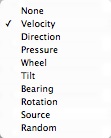
The Expression pop-up controls the option you choose to express the brush attribute. This means that the option is used to modulate the brush attribute in real time in response to the stroke. Next to the pop-up is an Invert box. This allows you to invert the value of the option (so 1 becomes 0 and 0 becomes 1) before using it to modulate the expressed brush attribute. When the option is Direction, a 1 value is produced when the stroke moves in the direction associated Direction slider and a 0 value is produced when the brush stroke moves in a direction that is perpendicular to this.

The Velocity, Direction, Pressure, Wheel, Tilt, Bearing, and Rotation options are all derived from the stylus itself or from the physical motion of the stylus. With Velocity, the faster your brush moves, the smaller the value. With Direction, the maximum value is achieved when the brush stroke goes in the direction chosen by the Direction slider. Pressure, Wheel, Tilt, Bearing, and Rotation are all attributes of the stylus. If you have a mouse, check out the Brush Controls: Mouse palette to set these values.

The Source option means to use the clone source luminance. Here black means a 0 value and white means a 1 value. The Random option allows the expressed parameter to modulate through random values between 0 and 1 with each dab of the brush or each increment of motion for a computed brush like the airbrush.

Size

In the Brush Controls: Size palette, the size and min size attributes help control the changing size of the brush in response to expression. Note that min size is expressed as a percent of size. Size is controlled by pressure in the example shown here, a buildup brush.

Feature

Also in the Brush Controls: Size palette, the feature attribute controls the feature size of the airbrush spatters and the static bristles. This can be controlled by expression, which is interesting.

Opacity

In the Brush Controls: General palette, you control the opacity of the brush and thus you can adjust it in real time in response to your brush stroke by using expression. Commonly, opacity is controlled using pressure in a digital airbrush.

Grain

Also in the Brush Controls: General palette, you can control the grain penetration of the brush into the paper using this slider. This might be the perfect use for pressure, along with the Grainy Edge Flat Cover method, for instance.

Here, though, I have set the grain expression to Source, checked the invert box, and used a clone source that is white at the top and black at the bottom. This creates a direct grain expression in the brush stroke that trends from top to bottom and is cleanly varying.

When using grain penetration and expressing it using pressure, it is sometimes useful to use Preferences: Brush Tracking and then adjust the pressure power until you can get the intermediate levels.

Jitter

In the Brush Controls: Jitter palette, you control the jitter, which allows you to create a jumpy brush where each dab is placed randomly. This can be controlled by expression as well, which makes it convenient to set jitter to a low value when your brush is traveling slowly. Set expression to Velocity and check the Invert box. This can be convenient when expressing Size with Velocity, as shown with a Buildup brush. It is kind of like grain.

Angle

In the Brush Controls: Angle palette, you control the angle of a squeezed circular dab. The best way is to control it using Bearing, and then it will be oriented with your brush, no matter how you hold it.

Flow

For the airbrush, you can use the flow and min flow parameters in the Brush Controls: Airbrush palette to control the number of spatters that come out as you wield an airbrush stylus. This is like a flow wheel on a real airbrush. So you might want to use Wheel to control it, but Pressure works quite well also.

Depth

In the Brush Controls: Impasto palette, you control the depth of your impasto brush. This means you can express Pressure into depth and press harder to dig harder into the thick paint! It's natural for that.

Volume

In the Brush Controls: Liquid Ink palette, you control the volume of the liquid in your liquid ink brush. This can make it easy to control the stickiness of your ink with Pressure, and other stylus parameters. A liquid ink camel hair brush is shown with Volume set to be expressed using pressure. You can get the inimitable effects of a brush stroke that breaks up as you let up a little. Very nice.

Resaturation

In the Brush Controls: Well palette, the resaturation controls the amount of color retransferred into the brush as it mixes with wet paint in the canvas. This may be controlled by several parameters that work, like Velocity and Pressure. Set your resaturation slider to a low value to make it more useful.

Bleed

Also in the Brush Controls: Well palette, the bleed controls the amount of color picked up off the canvas. You can define your clone source to be white in the wet areas of your image and black in the dry areas. Then set Expression to Source. Hmm.

Image Hose Ranks 1, 2 and 3

Expression is used to control the ranks of an image hose. Each rank is usually set up with some attribute such as size, angle, color, or another variety. You can create arrows that point based on direction, for instance. Or you can use pressure to control size or the number of leaves in each clump. The image hose has unlimited uses. Here is one where Direction is used to control Rank 2, which is the color and pressure is used to control Rank 1, which is the size. I used the Mixed Cubes nozzle from the GEOMETRX.NZL legacy nozzle library, which shipped with Painter 4, I believe.

Color Expression

This one has its own palette at Brush Controls: Color Expression. And to controls the color expression. In other words, it controls the color you are drawing with, in a continuous gradation from the foreground color to the background color.


An Anatomy of Painter's Brushes, Part 3

The bristle brushes are definitely a very nice kind of brush in Painter, and it seems Corel has indeed been busy implementing more kinds of bristle brushes. Let's look at the actual output of the bristle brushes now.

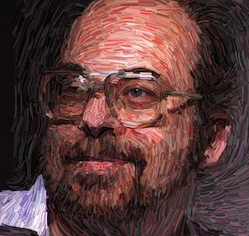
The original Van Gogh brush does indeed have a nice quality all to itself. Here I use the original brush, with some color jitter applied, and a bit of artistic fakery to create a bit of Starry Night magic. This shows how it was originally intended to work. You can use this technique with cloning as well, to great effect.

Here I am using Dab Type Circular, Stroke Type Multi, with a Soft Cover method. Jitter is set to the maximum, and Bristles (under Rake) set to 30.

This produces the original Van Gogh brush effect. I used this in several images released with Painter 1.0, and offered to the press.

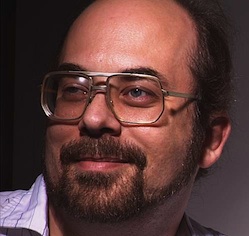
In particular, I took this image of myself with a video frame grabber on September 9, 1991, and applied the Van Gogh brush look to the image, using clone color.

You may notice that I missed the eye. Oops! Well, I didn't release this one to the press. It was drawn on September 17, 1991. Painter had only been released the previous month.

So this is me, right at the time that Painter 1.0 came out. And look, I still had some hair! OK, it doesn't show my pony tail...

I probably should have done a still-life instead. I think I was a little embarrassed at my proud pose. And self-conscious about my left eye, which opens a bit larger than my right. And look at those huge glasses! Weren't the 90s fun?

I think there's too much color jitter. But it certainly illustrated the cloning capabilities of the Van Gogh brush.


The rake brush was the next attempt at bristle brushes, and it was the rake brush that was used to recode the Van Gogh brush once Painter 2.0 was released. Actually I think it may have taken another release before we did this. Here you can see it has been set so the brush appears to turn as the direction of the brush stroke changes.

Also note that the rake brush has a separate color for each prong of the rake, which is compatible with color jitter. It made for a nice effect, and it was also a bit useful for cloning.

But, as you can see, it was limited to parallel lines, and this limited the scope of the brush tremendously to me. Of course, you can make the size change using pressure.

In Painter 3, I invented the bristle brush. It is now available under the Static Bristle Dab Type. I have used this brush as a smear brush to smudge around some color I also applied with the same brush, but with resaturation set to 1.0. Also, the spacing for the static bristle brush needs to be set to a very small amount - perhaps 1 or 2 percent. This is because the bristles are quite small compared to the radius.

It does indeed produce a nice smeary result, with the effect of bristles. But, with only one color well, this was a limited approach, and I think it is most useful for smearing. As a result of only having one color well, it can smear more than the camel hair brush, simply because the well color is applied to a larger area. This is the same effect, essentially, that made Just Add Water so useful in the early days of Painter.

In Painter 6, we went wild with the new brush engine. This resulted in several new kinds of brushes. In particular, the camel hair brush shows the value of this new approach. Now the color can be smeared by each bristle of the brush, and so there are streaks along the brush strokes that make it seem much more realistic.

Here you see the camel hair blend brush, which obviously uses a better internal color well to keep its color around. The brush quickly gets muddied by the colors of the canvas, and this makes is very useful indeed.

But the most important part of the camel hair brush is that each bristle gets its own life. As you can see in this example, each bristle has its own path through the canvas, its own color, its own color well (and thus smearing and color loading potential), and its own identity.

With all the work on bristle modeling, sometimes I forget that I was also creating things that were never seen before, like the line airbrush. This brush used the spatter airbrush model for 3D position of the stylus and also its projection technique for positioning each spatter of paint, but instead rendered the spatter as a line in the direction it was projected.

This created some of the more interesting art I have ever created.

Here you see one stroke of the line airbrush, with spread set to 72 degrees. I held the stylus at a significant tilt from the vertical to get this result, in the same exact manner you would direct an airbrush to overspray.

But the lines give it an extra added dimension that really can't be had in any other application.

In the next post on Painter's brushes, I'll talk about more of the style-extending reality-defying brushes and some of the craziness that occurred during the late 90s at Fractal Design.

We were just plain out of control!


Monday, April 2, 2012

An Anatomy of Painter's Brushes, Part 2

Blogging during Spring break is tough without a Mac, especially when blogger.com eats your post! I'm using blogsy on an iPad to lay out my post, and, I must confess I am using Paper by fifty-three to illustrate this post. When I need to crop, straighten, or adjust, I then use iPhoto. I try out all the mobile paint apps and I am quickly becoming a veteran of many trials and tribulations of the mobile environment.

Normally I use traditional ultra-fine Sharpie on 30# paper so it doesn't leak through. In Preview, I scan the line art using a Canon scanner that sits on my home network. Also in Preview, I tonally adjust and scale to appropriate dimensions for the blog. Quite often, somewhere in between, I use Painter to adjust, clean up stray lines, and apply coloring on a gel layer.

Sometimes I do my illustrations entirely in Painter because, along with the Wacom tablet, it is really an excellent drawing environment, rivaling the natural medium. But often I do my scribbling on a clipboard because, as you know, I am always sketching. When I get an idea, I like, to sketch it out.

This post concerns a unique aspect of Painter's brushes: the constant work done improving and re-improving upon the bristle brush model. It all started in 1991, when I was working on the very first version of Painter. One day I got the idea that it might not be all that difficult to create multi-bristle brush strokes.

My first try, which users got a look at in September 1991, when Painter was initially released, was the Van Gogh brush. This brush (1) recorded the brush stroke and then (2) played it back several times with some locational jitter applied to each stroke, and some color jitter (in HSV) applied to each stroke about the center color. This really was a magical amplifier to a brush stroke and it served to show me how powerful multi-bristle brushes could be. It could produce some great results. And it's not to be confused with the Auto Van Gogh effect, which extracts directions from the image and then re-renders it using thin dabs of multi-colored paint. That is one effect that can benefit from all the advances in direction vector field extraction and vector field visualization.

My second try came in Painter 2.0 with the rake brush. I worked on this in late 1992, while Tom Hedges and Bob Lansdon were working on the first version of watercolors. You can see the notes I drew for the initial idea. The bristles are placed on the circumference of a circle (cylinder) and the brush direction becomes the primary angle that determines which bristles are in contact with the canvas. That's the first sheet. In the second sheet, we see a bit about how we compute the exact points of contact for the brush stroke. In the third sheet I introduces a splay parameter that widens the potential number of bristles that come in contact. On the first sheet on the bottom row, I detail how opacity can fall off at the edge of the stroke and also how turning the brush (meaning changing brush stroke direction) can sequence through the bristles that contact the canvas. The last two sheets show the effect of curving the brush stroke and how the bristles exit and enter.

The rake brush was an interesting look, yet it really was only good at creating parallel arrangements of contact between the brush and the canvas. And, it only had one color well.

My next attempt was in the Painter 3 timeframe in 1994, and it was the bristle brush. This brush simply took a speckle, which is a random set of mutually-avoiding points in the plane, and used it to model the tight-packing of bristles within a brush itself. So I took the contact area of the brush, which I modeled as a circle, and used it to clip the speckle. The color of the brush was then rendered in the current well color, and there was, once again, only one color well for the brush. This was really just a shortcut for capturing a brush that contained multiple bristles in it. I think the reason I went for these simplistic solutions was that the compute power of the machines Painter was targeted for was quite limited. It's hard for me to think in those terms today, unless I start thinking more about the limits to the compute power of the iPhone and iPad environments.

Also during the Painter 3 timeframe, I made the Van Gogh brush work in real time while drawing the brush stroke. This probably didn't improve the look of the results, however.

There were plenty of brush advances in the Painter 4 and 5 timeframes, but I didn't really return to bristle brushes until Painter 6.

In 1998, I began working on brushes again using a separate environment from Painter, an environment called the San Marco development environment. Eventually this entire development framework was simply thrown away. But in the meanwhile, I used it to mock up the multi-bristle brush, the spatter airbrush, and the brush where an image, masked by its alpha channel, was mapped into the space of the brush, like a raster version of Alex Hsu's Expression brush. He called his technology Skeletal Strokes, but this shows what engineers do poorly: name their technology. It's lucky I was part marketer too.

The new code was implemented using C++, unlike Painter, which was implemented entirely in C and assembler (!). When we got to the Power PC, we raised the assembler used for the inner loop of the brush code back into C.

So there was a period in 1999 when Painter 6 was being written when I was gluing these technologies together. And the result was excellent. The camel hair brush was the result. This brush was great because it modeled every bristle separately and rendered it using a single pixel line. The line was colored according to its own color well, so each bristle effectively had its own color well. This meant the brush could be loaded with color, potentially a different color per bristle. Also, each bristle could keep a slightly different color in it, using color jitter.

But more importantly, each bristle had its own path across the canvas. To remedy the problem that there weren't really enough samples from the mouse or stylus, I built a way to smooth the path of the brush stroke. And introduce new samples, to avoid the visible vector stepping in the stroke. To do this, I created a FIFO to implement cubic interpolation. For every 4 points, I could create however many points I wanted in between the middle two points. I think I created three points in between them. This made the strokes much smoother but also introduced some squirrelly behavior. So I turned off interpolation when the speed of the brush went below a certain velocity or when the stroke made a sharp turn.

Another problem that needed to be solved in multi-bristle brushes was the stickiness of the paint and it's effect on controlling the brush bristles, and keeping them in check. To do this, I used a form of exponential damping (which also can describe part of the way the color well works). If you keep an accumulator for each scalar quantity, in this case, one for x and one for y, and call it a, and you receive a new x or y value (called s) periodically, you can update the accumulator in the following way: a' = a*(1-d) + s*d. Here d represents the fraction towards which we interpolate to the new value of s. The lower the value of d, the more relaxation on the sample values.

The problem of projecting the bristle positions individually onto the canvas was handled by computing the Frenet frame of the stylus and projecting a speckle of bristles in 3D onto the canvas, forming the updated bristle positions. The frame of the stylus was computed using the tilt and bearing values produced in real time by the Wacom stylus. It also had a pressure, and high pressure could be used to keep the tip closer to the canvas, while low pressure would signify greater distance from the canvas.

I used the same principles for the spatter airbrush, to great effect.

Along with the damping, the positions of the bristles could be known and relaxed into a very natural brush stroke.

Painter has a feature slider. This is used to control the average minimum distance between the bristles in both the bristle brush and the camel hair brush.

I know that Corel has also advanced the state of the art with their new bristle brush, but I can't play with it at the moment. On the next post in this series, I will discuss it, and also show some examples of the various bristle brush strokes.


Saturday, March 31, 2012

An Anatomy of Painter's Brushes, Part 1


Painter is famous for its brushes. Most are not duplicated anywhere else, despite some claims to the contrary. But what makes the brushes in Painter different? How do they work?

Well, I can't tell you how they work exactly, but I will share with you some of the decisions made in building Painter's brushes. And show you, hopefully, which brushes are good for what. And, along the way, I hope you will gain a better knowledge of how to use them to suit your artistic task.

Also, this could take several posts, so I will start with the basics, you know, Painter 1 and 2 brushes, and then work my way up to the much newer brushes.

Cover? Buildup?
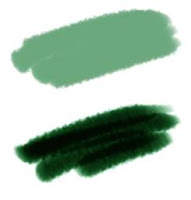
Painter uses some terms that describe some of the fundamental ways that the brushes lay their paint down onto the canvas. In the blog post on Color, I described different kinds of color mixing. You can think of cover methods as using interpolative color mixing, which is applied to additive color. Also, the buildup methods are using subtractive color mixing, in particular, they are using Beer's Law on the three components of the color, Red, Green, and Blue (this part is in the '620 patent, so it's public knowledge). But of course, it's more complicated than that.

Here you see cover (top) and buildup (bottom) strokes. Cover strokes tend to become flat opaque color, while buildup strokes increase their density.
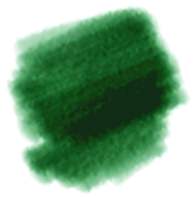
With buildup brushes, you choose colors that are less saturated, and contain all three color components in them. You must also set their opacity lower to get more levels of build-up. Here you see a version of that brush with the opacity lowered to 4%. As you can see, it takes much longer for the colors to darken.

You use cover methods for things like oils, airbrush, chalk, etc. So it is aptly named, since these media do tend to cover what's behind them.

Other media is more applied in a watery, transparent layer, like watercolors and felt pen. These media are more suited to modeling with the buildup methods. Sometimes colored pencils can behave this way as well. But don't confuse partitive mixing with buildup.

So, why does charcoal tend to build up when you use it? Charcoal builds up because the tiny grains of graphite get lodged in the crevices of the paper and the color partitively mixes with the color of the paper. Partitive mixing is also described in the color post. But what happens is more and more crevices and eventually even the tops of the grain get saturated with graphite and the color gets darker.

There should be more ways of mixing color in Painter, particularly since oil paints don't really mix in either of these ways. But wait... are we talking about mixing or simply laying down color?

Pickup, Mixing, and So Forth

Actual mixing of color on the canvas (and within the brush, it turns out) is modeled by Painter using a color well concept. This is not the same color well concept used by photo sensors that collect electrons. converted from photons by a photodiode. This is a concept by which RGB color is collected in a color well, and as other colors get put in, the well models what the mixture of the color is: a kind of local color accumulator.

The color well can be done on a whole-brush basis, or it can be down on a bristle-by-bristle basis.

Painter's modeling is quite sophisticated.
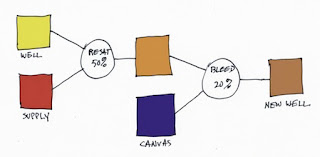
So let's look at how the color well performs. There are three parameters in the Brush Controls:Well section, and you need to know what they mean. Every time Painter lays down a brush dab or a bristle dab, the well is accessed. It knows about the supplied color (which is generally the current color, but it can also be the color from the original image when cloning) and it also knows about the canvas color underneath the dab or bristle. The color in the color well then becomes the brush color.

Resaturation is the capacity of the brush or bristle to be replenished with the supplied color with every dab or bristle that gets laid down. Bleed is a measure of the amount of canvas color that gets picked up by the brush (with every dab or bristle that gets laid down). And dryout is the distance over which the resaturation stops working.
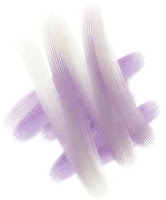
In the color well, resaturation tends to trump all other aspects of the well, and the most useful values for resaturation are generally down between 0 and 4%. This is where you get the fudgy, smeary mixtures of paint. You will need to combine this with the bleed setting. A low bleed setting tends to make the pickup take longer and thus the brush strokes get smearier. A high bleed setting causes less pickup and thus the smears become shorter, and, up around 50%, they become unnoticeable.

So both resaturation and bleed should be kept in the low ends of their ranges for the fullest degree of control. At resaturation of 2% and bleed of 28%, for instance, the bleed trumps the resaturation and causes consistent smears, seen here. The overstroke color is a dun color, barely discernible due to the low resaturation.
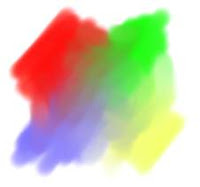
The best way to get a real admixture of color is to mix brushes. In other words, lay the color down first and do your admixture afterwards.

Here, I first drew unsullied patches of red, blue, green, and yellow using a higher resaturation (28%) and a comparable bleed (27%). Then I set resaturation to zero, creating a smear brush. Using the smear brush, I mixed the paints together to get the muddy mixtures in between.

Real mixtures with real paints usually keep a bit more saturation (in this case, I mean colorfulness). This is because the scattering term and the absorption term need to be kept separate. And also because actual colorant mixing can't really be properly modeled using only three wavelengths.

Future paint applications will need to do this, I believe. I would think that two-constant Kubelka-Munk theory should suffice as a good second-order approximation.

But, you know what? More and more artists are using digital paint applications. So they are going to expect the paint to mix more like RGB interpolative mixing, and less like actual oil paint mixing. And I am partly to blame for this, I know.

Paper Grain, and Grainy Soft, Flat, Edge, and Hard Methods
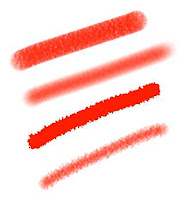
Painter's first real advance in 1991 was the paper grains. The way the brushes interact with the grains was also a serious advance over previous types of brush.

Here you see Grainy Flat Color, Grainy Soft Cover, Grainy Edge Flat Color, and Grainy Hard Cover methods. Note that I had to increase grain contrast to 400% so you could see the grain in the Grainy Soft Cover method's stroke. Each method has its own unique signature. Of particular interest to me is the Grainy Edge Flat Cover method.

This method can be adjusted by a few slider settings that you should be aware of, and can create a wealth of looks in this way.
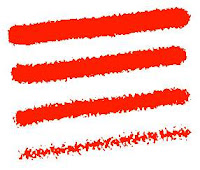
Here you see the grain slider adjusted to 28%, 21%, 15%, and 8% (top to bottom).

This allows you to control, using this linear brush (with a profile that is straight and pointed at the tip), the size and graininess simultaneously. But what if you want the amount of grain penetration to be controlled while you make the brushstroke?

A couple of features may allow you to do this.

Right next to the grain slider (in the Brush Controls:General section) is an expression pop-up. This allows you to control directly how the grain is animated during the stroke. Grain will be controllable directly by stylus pressure when you use pressure to control grain expression with this method.
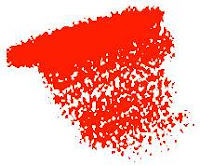
This shows a brush stroke created using this technique. But to get this level of expression out of it, I had to do another thing first. I had to go to Preferences:Brush Tracking and adjust the Pressure Power to a setting of 2.04. This makes more values that are closer to zero pressure in your brush stroke.

And therefore more grain, because as you saw above, it is the lower grain values that produce the most grainy edges.

When playing with paper grain, you can also adjust the grain itself to your taste as well. It is extremely convenient to be able to scale the grain. This works well with Grainy Edge Flat Cover brushes because it just makes the grains rounder. But you can also adjust the contrast (and thus how pronounced the grain will appear through the brush) and the brightness (in case your brush isn't actually touching the grain at all).

Of all the grainy brush methods, the Grainy Soft Cover method is probably the least useful, I would say. To make more sense of this soft method, you will probably need to adjust your paper texture characteristics.
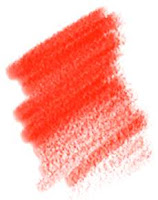
The Grainy Hard Cover method is about half way in-between the Grainy Soft Cover method and the Grainy Edge Flat Cover method. With this brush, both opacity and grain will have a bearing on how grainy the brush appears when you use it. It is probably the best method for simulating colored pencils.

Here I have set an opacity of 11% and a grain of 30%. This gives us good coverage and a nice grain taper with opacity. I have set grain expression to pressure and opacity expression to none. This one is also sensitive to the Preferences:Brush Tracking adjustments, particularly Pressure Power, because I'm using pressure. It's a pretty good chalk or colored pencil.

Cover Brushes and Opacity
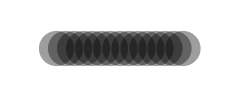
It's time to discuss the problem of how to set the opacity of cover brushes. The problem with many cover brushes is that they use sequential dab overlay. This means that the dabs are laid out along the brush stroke according to the brush spacing. If you set the color to black, the brush spacing to 50% and the opacity to 38%, you get the pattern you see here. What this all means is that it is hard to set the opacity of an airbrush to get the actual opacity you want. It becomes an effective opacity of 100% way too quickly because of the sequential dab overlay effect.

By 50%, the spacing is measured in terms of the radius of the brush. I am using a one-pixel-edge brush so you can see the placement. So how dark does it get along the stroke? It depends upon the overlap, as you can see, and because of that, upon how many the dabs will overlay in one spot. Since the radius is 1/2 the diameter, we can calculate the number of times an overlap will happen as 1/(2*spacing). Each time an overlap happens, the color gets more opaque. The opacity of n overlaps is 1 - (1-opacity)^n. Using these formulas, you can compute the opacity of the brush stroke. In this case, n is clearly 4, and the transparency is 62% to the fourth power, or 14.8%, so the opacity ends up being 85.2%, which seems right.

How Corel Can Fix This

An aside: what Corel needs to do is to let the user specify the final opacity (called the desired opacity) they want and then invert these formulas to compute the proper opacity for the current spacing. It's easy, and so here's how it can be done:
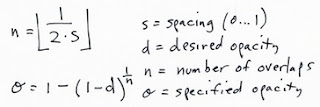
Here, the specified opacity is the one you used with each dab of the brush.

With airbrushes, that have a soft profile, this may be a more complicated formula. But it will be arranged according to powers of transparency, as I have indicated here. Perhaps the floor won't be necessary, making n a continuous parameter. It turns out that this can be measured empirically and then the opacity setting can be computed fro the desired opacity and the spacing using a table lookup. Really, the only coefficient that will need to change is the power term, so you could keep one coefficient per profile. Possibly, though, the spacing (with different profiles) will have a non-linear effect on the overlap and thus the opacity of the stroke. In this case, you might need one coefficient per profile per spacing. Since spacing is a continuous parameter, it must be quantized into a small table.

Oh, I love programming!

Next time, maybe I'll write about grain histogram equalization and the problem of getting consistent results with different paper texture patterns. It would really be nice to get a more ergonomic handle on brushes, grain, opacity, and all that jazz.